
Background
If you want to use your X-Arcade Tankstick to play pinball games on a console, you typically need an adapter to convert the Tankstick's keyboard and mouse signals into a standard controller input. The official solution is the X-Arcade X-Adapter — but it comes at a premium price.
The BLADER adapter by Aimzenix is a more cost-efficient alternative that achieves the same result. It does require a bit of initial setup and some trial and error to get your button mapping just right, but the process is straightforward and this guide walks you through every step.
Supported Consoles
The BLADER adapter works with the following consoles — one of the best things about this solution is how many platforms it covers:
- PlayStation 4
- PlayStation 3
- Xbox Series X / Series S
- Xbox One
- Nintendo Switch
How This Setup Works
- The Tankstick sends keyboard and mouse inputs over USB.
- The BLADER adapter converts those inputs into a standard game controller signal.
- The console receives the signal as if it were a standard controller.
Requirements
- X-Arcade Tankstick (Tankstick, Tankstick with Trackball, or Tankstick Max)
- BLADER adapter by Aimzenix
- Original console controller (required for authentication)
- USB-A cables (for Tankstick) and USB-C data cable (for BLADER adapter)
Step 1 — Set Tankstick to Programmable Mode
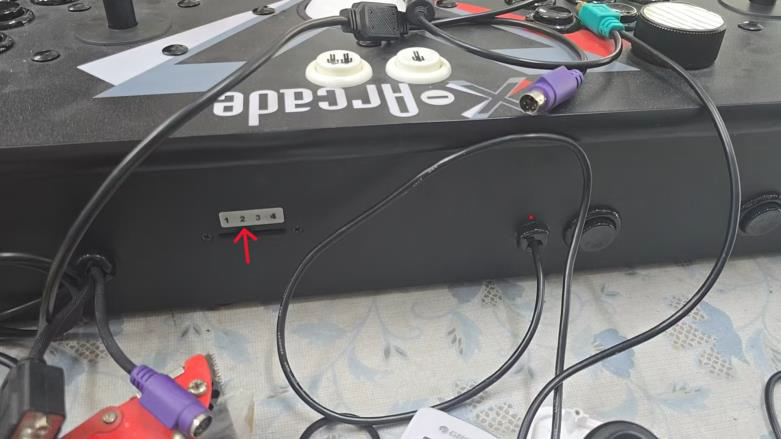
Newer Tankstick Models (Tri-Mode PCB)
- Switch your Tankstick to Keyboard Mode 2.
Older Tankstick Models (Legacy PCB)
Modes 2–4 are all programmable. You may use any of these modes.
Step 2 — Program Button Mapping
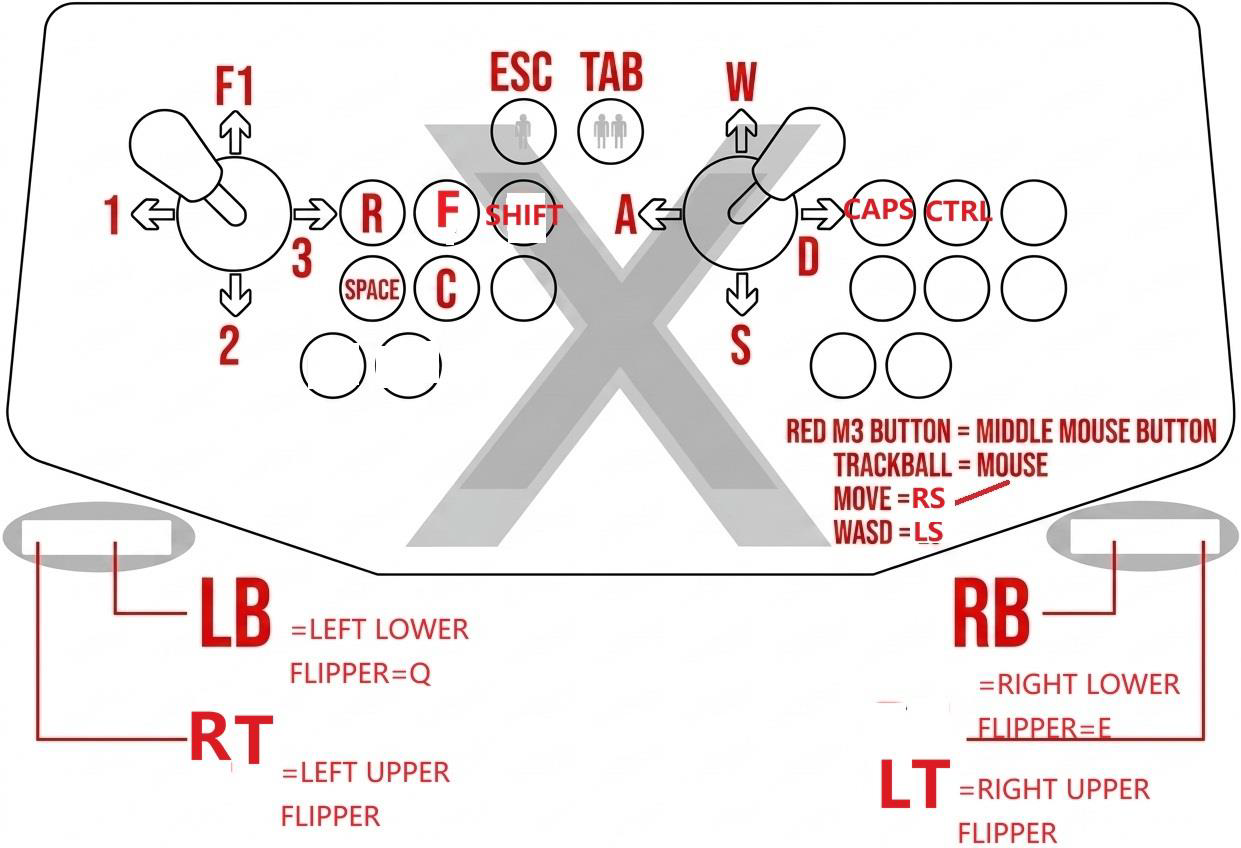
You must program your Tankstick so each button sends the input the BLADER adapter expects. Use the X-Arcade software (Option 1):
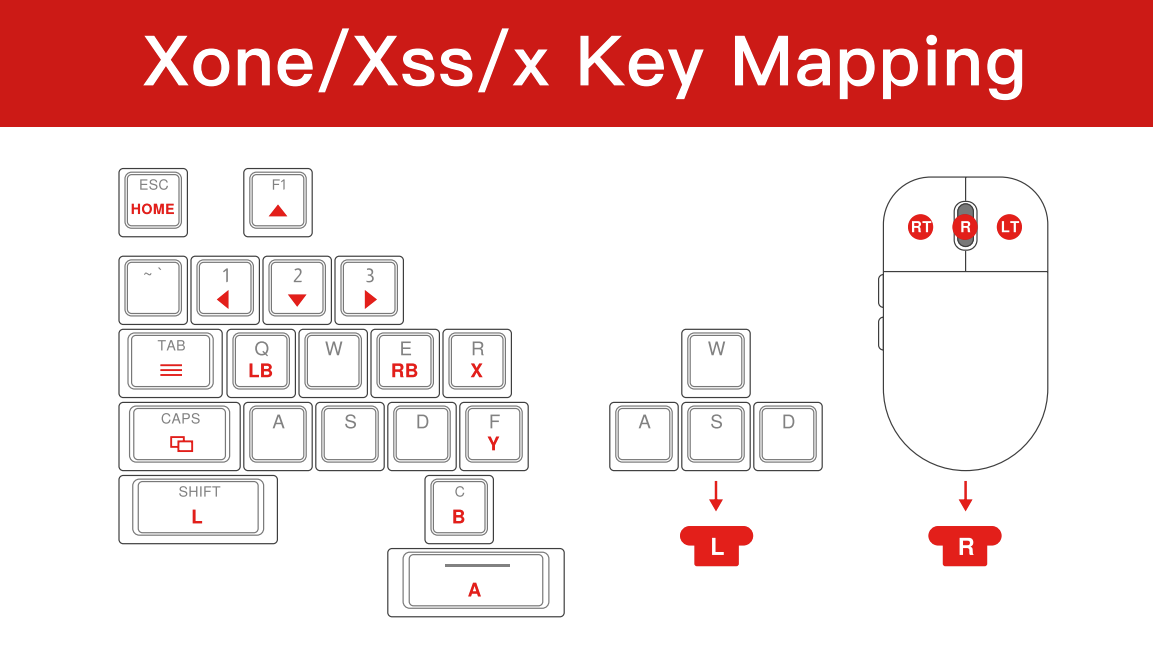
Mouse-Based Buttons (Fixed Mappings)
The following controls are fixed by the Tankstick hardware and cannot be reprogrammed through the X-Arcade software:
| Tankstick Control | Sends Input As | BLADER Maps To |
|---|---|---|
| Left Upper Flipper | Left Mouse Click | RT |
| Right Upper Flipper | Right Mouse Click | LT |
| Red LED Button | Middle Mouse Click (M3) | Right Stick Button (R3) |
Step 3 — Connect to the BLADER Adapter
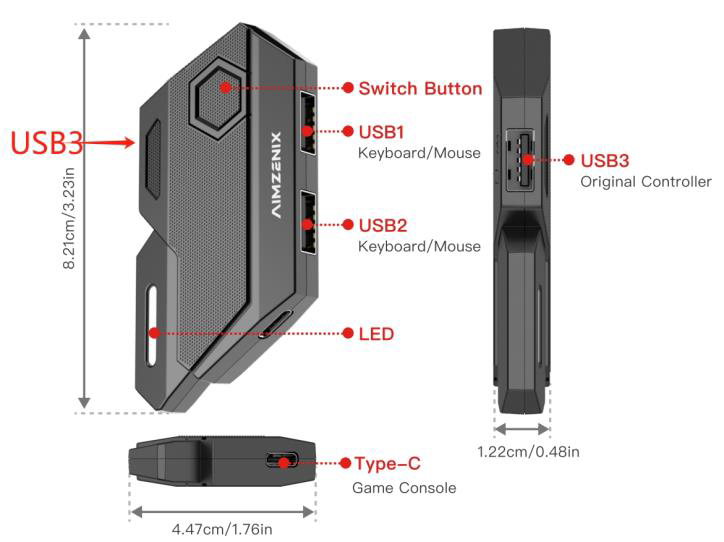
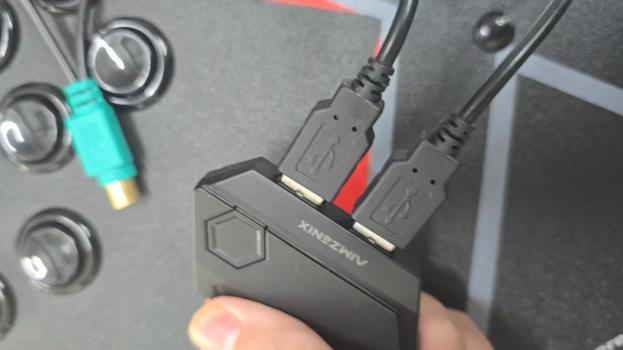
1. Plug both Tankstick USB cables into the USB1 and USB2 ports on the BLADER adapter.
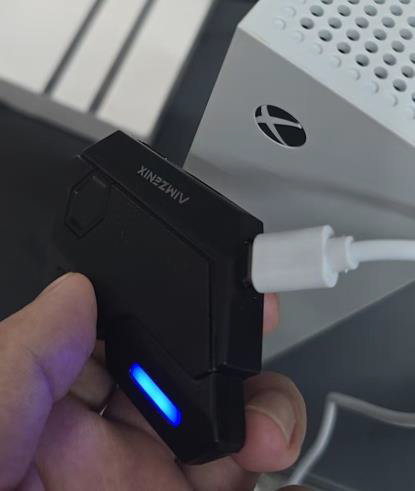
2. Connect the BLADER adapter to your console using a USB-C data cable.
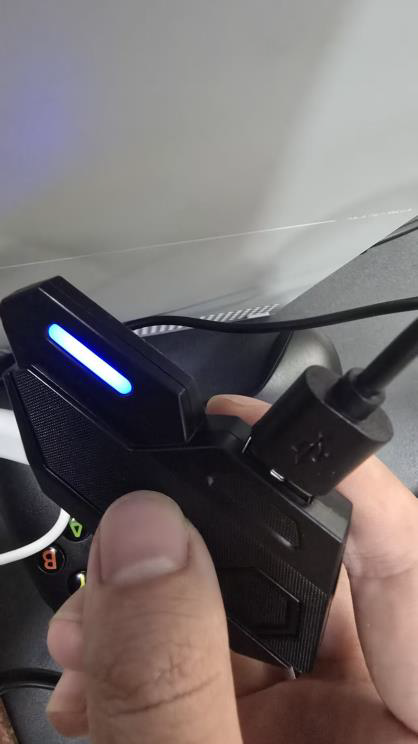
3. Plug your original console controller into the USB3 port on the BLADER adapter.
Step 4 (Optional) — Swap LT / RT via BLADER Customization
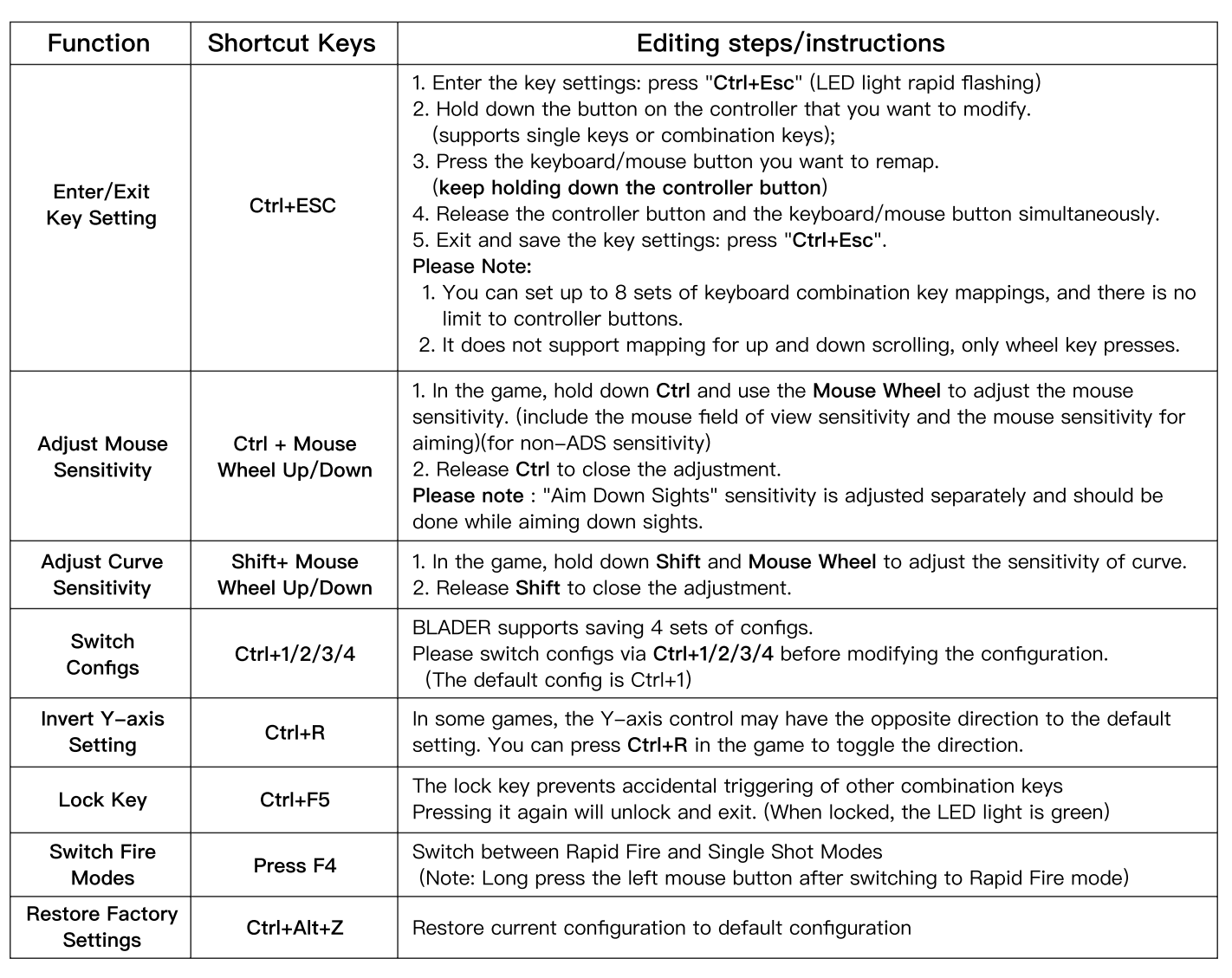
If the LT/RT trigger mapping feels reversed, you can swap them using the BLADER adapter's built-in customization mode.
- Press and hold CTRL + ESC on your Tankstick simultaneously. The LED on the BLADER adapter will flash white, indicating you have entered customization mode.
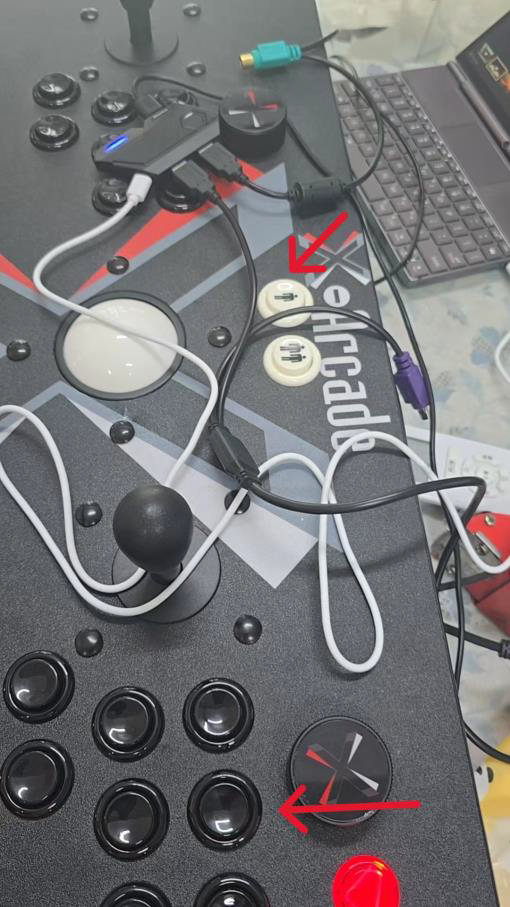
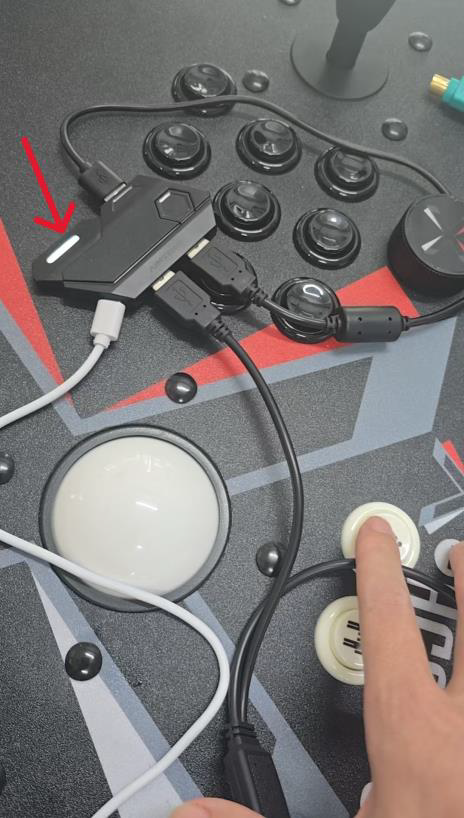
- Press and hold the Left or Right Upper Flipper on the Tankstick together with the corresponding LT or RT button on the original controller connected to the BLADER adapter. Release both buttons at the same time.
- Press CTRL + ESC on the Tankstick again to save and exit customization mode.
- Repeat the steps above to remap the other trigger if needed.
You're All Set!
Once everything is connected and your buttons are mapped, your X-Arcade Tankstick will work as a controller on your console. Fire up your favourite pinball game and enjoy!
- This setup support single-player only.
- The original console controller must remain connected for authentication.
- If controls are not responding correctly, revisit Step 2 to verify your button mapping.
- Some trial and error with button mapping is normal — don't be discouraged if it takes a couple of attempts.