
Recommended: Use the Arcade2TV-XR Web Configurator
We now recommend the Arcade2TV-XR Web Configurator for controller remapping and supported firmware upgrades for the Arcade2TV-XR controller, Gen2 wireless dongle, and Haptics PCB:
https://xgameroom.com/arcade2tv-xr-configurator/
You can also find this tool from the home page of shop.xgaming.com.
The web configurator runs directly in a supported browser on Mac or Windows PC, lets users select the desired firmware on the web page, and removes the normal need to download separate firmware files or Windows-only software.
If the web configurator is unavailable, or if support specifically asks you to use the local tool, you can still use the downloadable Arcade2TV-XR software and the manual firmware files listed in this article.
Important: Always choose the firmware for the correct component: Arcade2TV-XR controller, Gen2 wireless dongle, or Haptics PCB. Gen1 dongles are not firmware-upgradable.
Buy the Gen2 Wireless Dongle here → https://shop.xgaming.com/products/x-arcade-gen2-wireless-dongle-upgrade-for-arcade2tv-xr
The X-Arcade Gen2 Wireless Dongle is a direct upgrade to the stock / Gen1 dongle included with early Arcade2TV-XR systems.
It was developed to address real-world issues reported by users—especially compatibility with 3rd-party battery headstraps, lack of mode switching, and long-term durability—while adding new features that expand how and where you can use your Arcade2TV-XR controller.
⚠️ Important Compatibility Notice
- This dongle is designed ONLY for Arcade2TV-XR (Tankstick VR)
- It does NOT work with other X-Arcade Tankstick models
(Tankstick Max, Solo, Dual, etc.)
What’s Improved Over the Stock / Gen1 Dongle
✔ Improved 3rd-Party Battery Headstrap Compatibility
The Gen2 dongle resolves wireless stability issues caused by many 3rd-party battery headstraps, including popular models such as BOBOVR.
You can now use extended-battery VR headstraps without random disconnects, interference, or pairing instability during gameplay.
✔ Multi-Mode Support (New Feature)
Unlike the original dongle, the Gen2 dongle supports switchable input modes, giving you far more flexibility.
Default Mode – Keyboard Mode
- Required for Pinball FX VR
- Works exactly like the stock dongle out of the box
X-Input (Dual) Mode
- Connect Arcade2TV-XR to a PC via the rear USB-C port
- Enables wireless two-player gameplay
- Ideal for PC, Steam Deck, and modern games
X-Input (Pinball Mode)
Allows gameplay in:
- Pinball VR Classic
- Star Wars Pinball VR (Meta Quest)
Uses standard X-Input (gamepad) controls
⚠️ Note: Positional pinball mapping (such as Pinball FX VR) is not supported yet in this mode.
✔ Firmware-Upgradable Dongle (Major Upgrade)
This is a significant improvement over the Gen1 dongle.
The Gen2 dongle is firmware upgradable using the Arcade2TV software tool, allowing future improvements, fixes, and compatibility updates.
This was not possible with the original dongle.
Arcade2TV Software Tool Download (Windows PC):
Download link
✔ Improved Durability & Physical Design
- Stronger housing for long-term use
- Improved internal design for better reliability
- Designed for frequent plug / unplug scenarios
✔ Strap Hole + Included X-Arcade Strap
The Gen2 dongle includes:
- A dedicated strap hole
- An X-Arcade branded removable strap
This allows you to secure the dongle to your pedestal or stand, reducing the risk of loss when moving or storing your setup.
Power & Charging Safety Notice
- Supports USB-C charging up to 60W MAX
- Do NOT exceed 60W
⚠️ Using chargers above 60W may cause overheating and permanent damage.
Required Firmware Update (Mandatory)
To use the Gen2 dongle correctly, your controller must be updated.
Arcade2TV-XR Controller Firmware: v3.62 (Required)
Firmware Download:
Download link
Video: Updating Arcade2TV-XR Controller Firmware
Plays from 00:02
(The Gen2 dongle ships with the correct dongle firmware pre-installed. Only the controller update is mandatory.)
How to Pair the Gen2 Wireless Dongle
Pairing only needs to be done once, unless the dongle or controller is reset.
Pairing Steps
- Plug the Gen2 Wireless Dongle into your target device (Meta Quest, PC, Steam Deck, etc.).
- Power the Arcade2TV-XR / Tankstick VR using the rear USB-C port.
- Press and hold the button on the Gen2 dongle for 3–5 seconds, then release.
- The dongle will enter pairing mode and connect automatically.
- Once paired, the connection will be saved for future use.
Pairing Notes
- If pairing does not complete, unplug and replug the controller’s rear USB-C power and try again.
- Pairing mode is only triggered by a press-and-hold (short presses are for mode switching).
- The dongle will automatically reconnect the next time both devices are powered on.
Video: Gen2 Dongle Pairing
Plays from 01:15
⚠️ IMPORTANT: Gen1 vs Gen2 Dongle Compatibility (Read Before Updating)
Before performing any firmware upgrade, please confirm which wireless dongle you have.
Gen1 Dongle (Standard with Original Purchase)
• This is the dongle included with your original Arcade2TV-XR / Tankstick VR bundle.
• It was not purchased separately.
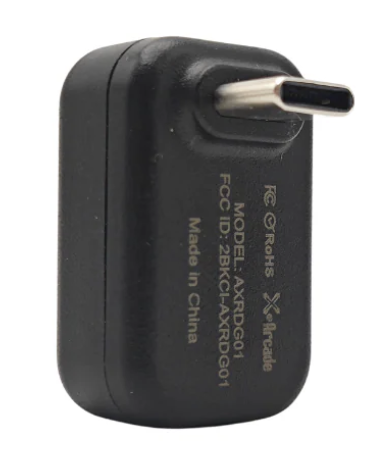
• ❗ This dongle is NOT firmware upgradable.
• ❗ It is NOT compatible with Gen2 firmware.
Attempting to install Gen2 dongle firmware onto a Gen1 dongle will permanently disable the device.
If your dongle came in the original box with your controller and you did not purchase a separate Gen2 upgrade, you have a Gen1 dongle.
Gen2 Dongle (Purchased Separately / Included with Haptics Kit)
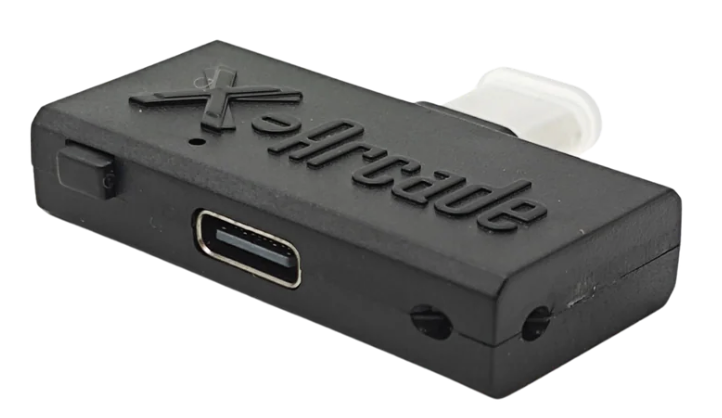
• This dongle is purchased separately as an upgrade
• It is also included with the X-Force Haptics Kit
• ✅ Firmware upgradable
• ✅ Compatible with the Gen2 firmware versions listed on this page
If you specifically purchased a Gen2 wireless upgrade or received one with your Haptics Kit, you have a Gen2 dongle.
Mac and Windows Users - Arcade2TV-XR Web Configurator
Mac and Windows PC users can perform supported firmware upgrades using the Arcade2TV-XR Web Configurator:
Arcade2TV-XR Web Configurator:
https://xgameroom.com/arcade2tv-xr-configurator/
⚠️ Please Note:
Recommended: Use the current Arcade2TV-XR Web Configurator first. It is cross-platform for Mac and Windows PC and supports the Arcade2TV-XR controller, Gen2 wireless dongle, and Haptics PCB firmware workflows.
If you are unsure which dongle you have, please contact support before attempting any firmware upgrade.
Upgrade Gen2 Dongle Firmware (Optional/When Required)
All Gen2 wireless dongles ship with v3.41v2 pre-installed.
You only need to update the dongle firmware if instructed by X-Arcade Support, or when upgrading to the latest controller and haptics firmware to fully resolve the USB disconnection issue.
Available Gen2 Dongle Firmware
v3.41v2 (Stock Version)
• Default firmware shipped with all Gen2 dongles
• Recommended for general use
• Compatible with Arcade2TV-XR controller firmware v3.62 and earlier
Download:
Gen2 Dongle Firmware v3.41v2
v3.43v2 (Latest – Required for USB Stability Fix)
• Required when using:
- Arcade2TV-XR Controller Firmware v3.64
- Haptics PCB Firmware v1.8 (if installed)
• Fixes random USB disconnections caused by host device differences
• Works with or without the Haptics Kit installed
Download:
Gen2 Dongle Firmware v3.43v2
⚠️ Important Compatibility Note
To fully fix the USB disconnection issue, all related components must be updated together:
Haptics Kit Firmware Upgrade Instructions: How to Upgrade X-Force Haptics Kit (Haptics PCB Firmware)
• Arcade2TV-XR Controller: v3.64
• Gen2 Wireless Dongle: v3.43v2
• Haptics PCB (if installed): v1.8
Steps (Only If Updating)
- Download the Arcade2TV Software Tool:
https://shop.xgaming.com/atv-config-tool - Plug the Gen2 dongle into your PC.
- Open the Arcade2TV software tool.
- Select Gen2 Dongle Firmware Update and follow the on-screen instructions.
- When finished, unplug and replug the dongle.
- Re-pair the dongle if needed (press and hold the button for 3–5 seconds).
Video: Gen2 Wireless Dongle Firmware Upgrade Guide
Plays from 00:40 to 01:14
How to Switch Input Modes (LED Indicators)
Use a short press on the button located on the Gen2 dongle to cycle through input modes.
Each mode is indicated by a blinking LED color.
Mode 1 – Keyboard Mode (Blinking Red)
- Default mode
- Required for Pinball FX VR
- Used for keyboard-based VR and PC games
Mode 2 – X-Input (Dual) Mode ( Blinking Green)
- Designed for PC and Steam Deck
- Enables wireless two-player gameplay
- Connect Arcade2TV-XR to your PC using the rear USB-C port
- Functions as a standard X-Input gamepad
Mode 3 – X-Input (Pinball Mode) (Blinking Purple)
- Designed for VR pinball titles on Meta Quest
- Compatible with:
- Pinball VR Classic
- Star Wars Pinball VR
- Uses X-Input controls
⚠️ Note: Positional pinball mapping (Pinball FX VR) is not supported yet in this mode.
Mode Switching Notes
Short press → switch modes
Press & hold (3–5 seconds) → pairing mode
Selected mode is saved and persists after power cycling
Quick LED Reference
Blinking Red → Keyboard Mode
Blinking Green → X-Input (Dual) Mode
Blinking Purple → X-Input (Pinball Mode)
Here’s a clean, copy-paste–ready troubleshooting section written to match the tone and structure of the existing support article. You can drop this directly into the document as a new subsection.
Star Wars Pinball VR – Flipper Buttons Not Working (Meta Quest)
If the side flipper buttons do not work when playing Star Wars Pinball VR on Meta Quest using the Gen2 Wireless Dongle, this is expected behavior until the in-game control setting is adjusted.
This is not a firmware issue and does not require remapping or hardware changes.
Cause
By default, Star Wars Pinball VR assigns flippers to LT / RT, which do not map to the physical side flipper buttons on the Arcade2TV-XR.
Solution (Required In-Game Setting Change)
Follow these steps inside Star Wars Pinball VR:
Launch Star Wars Pinball VR on your Meta Quest.
Walk up to the TV screen inside the game environment.
Open Options.
Go to Control Customization.
Change the flipper controls from:
LT / RT
to → LB / RB
Confirm and exit the menu.
Once this change is applied:
The side flipper buttons on the Arcade2TV-XR will function correctly.
No restart, re-pairing, or firmware update is required.
Notes
This setting is specific to Star Wars Pinball VR.
Other pinball titles (such as Pinball FX VR) do not require this adjustment.
The selected control layout is saved by the game and will persist for future sessions.